
Affiliate disclosure: This page contains an affiliate link to InterServer. If you buy through it I may earn a commission at no extra cost to you. The prices and figures below are from my own invoices; this is a buying framework, not a provider ranking or a performance test.
The usual way to buy a VPS is to open four pricing pages, line up vCPUs, RAM and price, and pick the best-looking row. Then the site goes live and you discover your own admin dashboard is quick while your visitors see a slow page — or the machine is cheap but every incident costs you half a day. My order is different: decide who the site serves, decide where the machine should sit, and only then compare specifications.
This is an evaluation checklist for someone about to run WordPress. It is not a review of any specific server, contains no benchmark numbers, and does not publish a “best VPS” ranking.

1. Start with where your visitors are
If most readers are in North America, North American access performance belongs at the top of the list. If you serve several regions, each needs its own check. How quickly you open the WordPress admin from your own desk and how quickly a visitor on another continent opens the public site are two separate problems.
Do not assume a datacentre label such as “Hong Kong” or “Tokyo” automatically means faster. Routing, congestion and your page weight all matter. If the provider publishes a test IP or test file, check latency and download behaviour from your target region — while remembering that a shared test endpoint cannot fully represent the machine later assigned to you.
2. Leave headroom for the database and maintenance
WordPress is not just a web page: PHP, the database, caching and cron jobs all consume resources. Installing a control panel, an image-processing plugin, or running a backup alongside normal traffic adds load.
I will not promise a visitor capacity based on “1 core / 2 GB”. A statically cached blog and a store hammering the database behave completely differently on identical hardware. Judge a plan against your real pages, your plugin combination and observed behaviour — not a fixed number of concurrent users copied from someone else’s post.
On a tight budget, reduce theme and plugin complexity first, then upgrade based on monitoring. Before upgrading, confirm how migration works; do not assume every plan can be resized smoothly.
3. Compare total cost, not the first invoice
Read the checkout page line by line: renewal amount, backup fees, extra IPs, bandwidth overage rules, taxes, and cancellation/refund conditions. An annual price looks attractive, but paying for a year before you have validated the network and the workload removes your freedom to switch.
If you are new to Linux, price your own time too. A control panel simplifies installation; OS updates, security configuration and incident handling still need an owner. In my case, maintaining one small site involved installing PHP extensions, wiring up Redis, and diagnosing a 502 after switching to PHP 8.3.36 (Nginx lacked permission on the new PHP socket).
4. Treat backups and uptime as separate questions
A server that boots is not the same as data you can recover. Backups should at minimum cover the database, uploaded files and key configuration, with at least one copy that does not live on the same VPS.
The only test that matters is a restore: can you reopen posts, images and the admin after restoring? A “backup succeeded” message tells you nothing about the recovery path. Record backup location, restore duration and the outcome.
5. Decide whether to keep it after delivery
Write down the plan, datacentre, OS and test date first, then fill in this table:
| Area | What to record | Question it answers |
|---|---|---|
| Resource use | CPU, RAM and disk during normal use and during maintenance | Is there an obvious bottleneck? |
| Network route | Test region, carrier, time of day, latency, packet loss | Is access stable for the target audience? |
| Page response | Cached and uncached pages separately | Where to look when something is slow |
| Availability | Monitoring window, incident count, duration of each | What actually happened during observation |
| Recovery | Backup location, restore time, restore result | Can the site be rebuilt after a failure? |
One speed test does not describe long-term performance, and a quiet fortnight is not evidence of “99.9% annual uptime”. Use the table before purchase to organise requirements and afterwards to record real results.
Turning requirements into a shortlist: a worked example
The following is a hypothetical personal-blog scenario that demonstrates the order of decisions. It is not another product review and not a universal spec.
| Condition written down | Judgement in this example | Check to complete before buying |
|---|---|---|
| Articles and images, no store | Evaluate as a content site; do not borrow e-commerce requirements | List theme, plugins, image processing and backup jobs |
| Self-managed but limited experience | Count maintenance time and support scope as part of the cost | Decide who owns OS, database and WordPress updates, and recovery |
| Readers concentrated in one region | Test that region first | Test on the target network at typical times; save the date and results |
| Budget covers only basics | Filter on the final invoice; drop unused add-ons | Check renewal, bandwidth, backups, taxes and the total payable |
| Real load not yet verified | Do not accept a marketed “visitors per month” figure | Confirm upgrade and migration paths; observe headroom during backups |
Questions to ask before paying
- What is the price after this promotion ends, and what are the cancellation and refund terms?
- What period does the bandwidth allowance cover, and does overage mean a charge, throttling or suspension?
- What exactly does the backup include, can it be downloaded off-server, and who performs a restore?
- Does upgrading require a migration, might the IP change, and is there a downtime step?
Which operating system should you pick?
- Ubuntu LTS (22.04 / 24.04) — most tutorials, best panel support, easiest to find answers. My own stack runs on Ubuntu.
- Debian — lighter on resources; worth considering for small-memory VPS plans.
- CentOS family — CentOS 8 is end-of-life; choose AlmaLinux or Rocky Linux instead.
- Unsure? Take the newest Ubuntu LTS. Images can be reinstalled later, but that clears data, so back up first.
Two numbers from my own invoice
My first month cost $12.99: $6 for the VPS plus $6.99 for the first year of a .com domain. If the monthly VPS price stays at $6, the first-year baseline is $78.99 (6 × 12 + 6.99). The first-month figure is not an annual figure, and neither includes paid themes, plugins or hired help. Note also that I was billed $26.88 in the second month of a “free” Namecheap Stellar hosting trial — I requested a refund and disabled auto-renewal. Read trial terms closely.
Frequently asked questions
Should a first-time WordPress site use a VPS or shared hosting?
First compare whether you can maintain a server, what the provider takes responsibility for, and the total cost. I already run this site on a VPS and did not keep a separate shared-hosting plan; that does not mean buying a domain obliges you to buy two kinds of hosting.
What size plan avoids wasting money on a small site?
I will not give a fixed size based on post count. Image processing, backups, database queries and traffic peaks all matter. 1 vCPU / 2 GB RAM / 30–40 GB SSD is a common starting point for one small WordPress site, but test your actual pages with your actual plugins and watch memory, CPU and disk headroom before deciding to upgrade.
How do I tell the promotional first month from the real yearly cost?
Separate them on paper. In my case: $12.99 to start, $78.99 as a first-year baseline if the $6 monthly rate holds. Add renewal pricing for the domain too, since first-year domain discounts rarely repeat.
Is this a ranking of the cheapest VPS providers?
No. It is a decision framework. I have not run the controlled comparisons needed to rank providers, and I do not publish rankings I cannot support with measurements.
Verdict
A VPS earns its cost by running your site reliably and by being something you can actually maintain. Settle visitor geography, backup expectations and your own admin capacity first; only then does a specification table mean anything. A low headline price is one input, not the decision.
If you want to see what this framework turned into for one real order, read my $6/month VPS experience (with the invoices, the speed caveats and the root-password incident). For the checkout comparison, current plans are listed on the official site — that is an affiliate link and the disclosure at the top applies.
Turning the checklist into an acceptance test
The checklist above is about deciding what to buy. This table is the generic evidence list for the day the machine arrives: no new prices, no new benchmarks, just what to write down and where to go back if a line does not hold. A plan that looks good on paper still needs these six confirmations.
| Check | Evidence to collect | If it does not hold, go back to |
|---|---|---|
| Where your visitors are | A short note on the main audience region | The latency assumption, before comparing plans |
| Headroom for database and maintenance | Memory and disk figures from the panel | The plan size, not the theme |
| Total cost, not the first invoice | Introductory and renewal lines side by side | The renewal terms before any add-on |
| Backups and uptime separately | Whether a snapshot exists and how to restore it | The backup settings, not a speed test |
| Delivery-day check | SSH login, hostname and a clean default page | The provider console |
| Operating system choice | Which stack your install steps actually assume | The install guide you are following |
The full build order is in the eight-stage setup guide; the figures from my own invoice are in the first-year cost record, and the longer-term maintenance view in what this $6 VPS has been like to maintain. What Is a VPS? separates the four things a beginner often conflates, and the timing sample is a separate question from reliability.
Where the domain fits once the VPS is yours
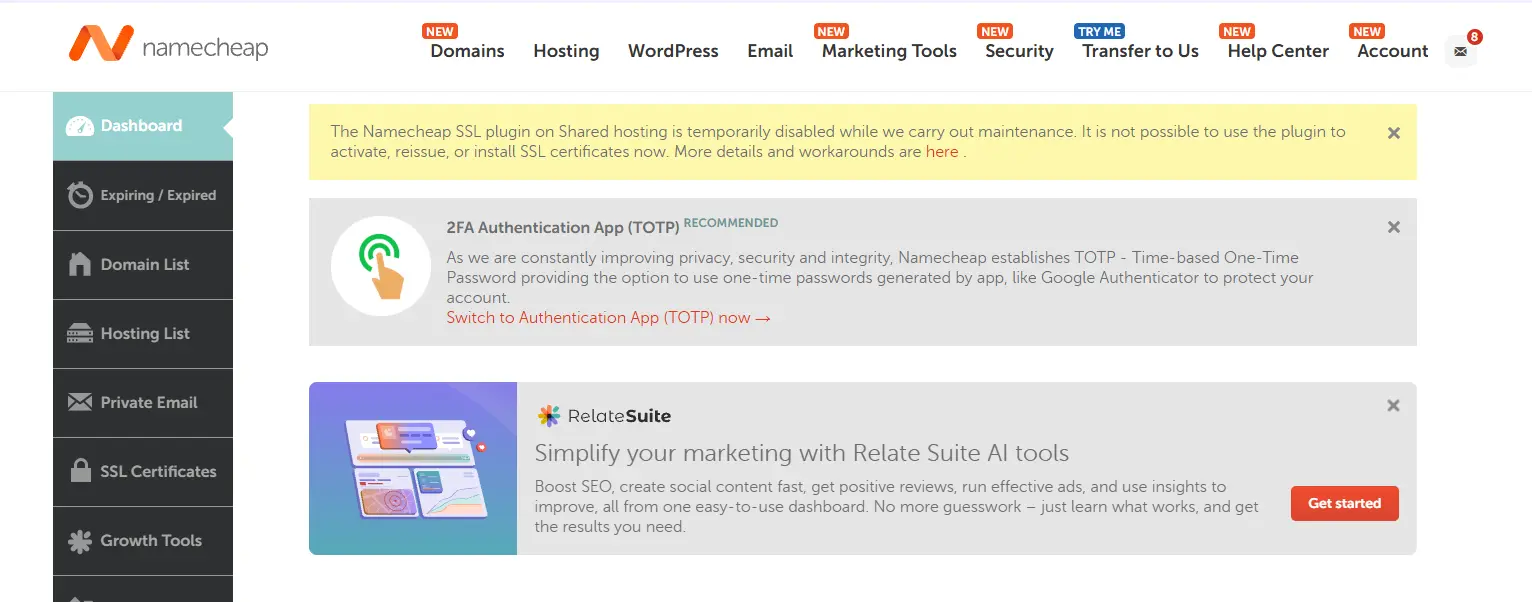
A domain and a VPS are two separate bills, but one A record joins them: the domain brings visitors to the address, the VPS holds the files. After registering the domain, point its A record at the server’s public IP in the registrar dashboard, then bind that same domain when you create the site in the server panel. Buy a VPS without updating DNS and the site is reachable by IP only. The screenshot below is from this site’s own account; Domain List in the left sidebar is that entry point, and no account, billing or domain-list details are shown.
Keep the first-year price and the renewal rate on separate lines as well. See what a domain, a VPS and WordPress each do, the eight-stage setup guide, and the first-year cost breakdown.
Keep reading
WordPress setup in 8 stages · English home · Original Chinese version of this guide