
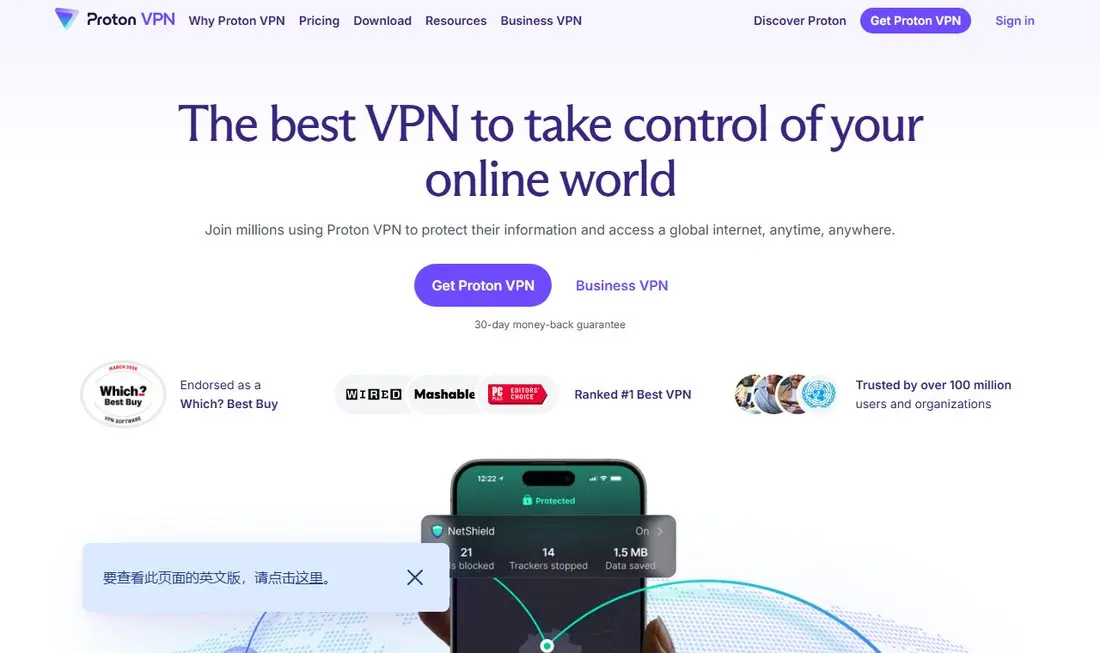
About this page: A practical setup sequence based on my own usage habits, not a product test. No vendor supplied instructions or data. Brand images below are identification only; they are not screenshots of this site’s backend.
Open a VPN client for the first time and the vocabulary — protocols, nodes, split tunnelling — can look intimidating. If you are unsure what a VPN does at all, read What Is a VPN? A Plain-English Explanation of the Encrypted Relay first. In my experience, ordinary setup is much simpler than the settings screen suggests: install, log in, choose a region, connect, verify.

1. Install and log in
Get the installer from the publisher’s official channel and pick the build for your operating system. Check the permissions and any bundled offers during installation, then log in with your account. I have not verified the full client or download list for every service mentioned on this site, so use the official site rather than a third-party mirror.
2. Choose a region
For a general first connection, pick a region that makes sense for what you are about to do and connect. Free plans may assign one randomly rather than letting you choose — Is Proton VPN Free Worth Using? What the Free Plan Actually Includes documents that distinction for Proton’s free tier. Do not assume a distant region is faster because it sounds better connected.
3. Press connect — then wait
My own recorded attempt took roughly 28–29 seconds from the click to the “connected” state (Slow VPN Connection vs Slow Browsing: What a 31-Second Recording Shows). That is one observation, not a typical value, but it is a useful reminder: a client sitting on “connecting” for a while is not necessarily broken. Give it time before reinstalling anything.
4. Confirm it is actually working
| Check | What it tells you |
|---|---|
| Client shows “connected” and a running timer | The tunnel reached a connected state |
| A page that displays your IP shows a different address | Browser traffic is taking the new route |
| Open a few ordinary pages | Whether content actually loads after connecting |
These are three different facts. “Connected” alone does not prove the page loads, and a page loading does not prove every application on the device is using the tunnel.
If it will not connect
Work through one variable at a time: is your ordinary internet working, are the account and subscription active, is the client version current, does another region behave the same, and is another network layer (a proxy or a second VPN) active at the same time? That last one matters — in Google Image Captchas With 922 Proxy in Hubstudio: What I Could Not Conclude I could not identify the cause of a problem precisely because two network tools were running together.
Do you need the advanced settings?
Usually not on day one. Protocol selection, split tunnelling and custom DNS become relevant once you have a specific requirement. Changing several at once before you have a working baseline makes troubleshooting much harder. Get the defaults working, write down what you changed afterwards, and change one thing at a time.
Frequently asked questions
How do I use a VPN on a phone?
Install the official app for your platform, log in, grant the VPN configuration permission when prompted, choose a region and connect. Then verify with a page that shows your IP, as in the table above.
How do I use a VPN on a computer?
Same sequence with the desktop client. If you are configuring a proxy inside a browser instead of a VPN client, that is a different process — see What Is an Overseas Proxy and How Do You Actually Use the IP You Bought?.
How do I make a VPN faster?
First decide which “slow” you mean. A long wait to connect and slow pages after connecting have different causes; Slow VPN Connection vs Slow Browsing: What a 31-Second Recording Shows separates them. If browsing is slow after connecting, note the region, time and pages involved before changing settings. A VPN cannot make your underlying broadband faster.
A step-by-step acceptance check
The steps above are the usual setup path. This table is the generic “how do I know this step succeeded” list, not a new test of any client: screen labels differ, so use the equivalents in yours. Note that changing protocol or split-tunnelling options belongs after step 4, not while the connection is still failing.
| Step | Confirmed when | If not, go back to |
|---|---|---|
| Install and log in | The client opens and the account is accepted | The download source and the credentials |
| Choose a region | The exact node label is visible in the client | The region list, before changing advanced settings |
| Press connect | The client reports connected, with a timestamp | Network reachability, not the protocol options |
| Confirm it is working | One fixed page opens and the visible IP is as expected | Step 3, then check whether another tunnel is active |
| Log the outcome | Connected / failed / dropped, plus the on-screen message | One variable at a time, not a fresh client |
For what a VPN actually changes, see What Is a VPN?; for a reproducible record of a connection wait, the six-field log template. The one service with first-hand connection notes here states its limits just as narrowly, and whether any of this is worth paying for is covered in the free-versus-paid reasoning and the Proton free-tier evaluation.
Where to read next
What Is a VPN? A Plain-English Explanation of the Encrypted Relay for the mechanism, Pioneer VPN on China Telecom: ¥29.37 a Month and a 28-Second Connection for my single-user paid record including the ¥29.37/month figure, and Are Free VPNs Enough? What Paying ¥29.37 a Month Actually Changed for the free-versus-paid decision.
Related notes: If a connection looks slow rather than broken, the difference between connection wait and slow browsing separates the two stages. For the underlying concepts see What Is a VPN?; for deciding whether a free plan is enough, see Are Free VPNs Enough? and the Proton free-tier evaluation. These are setup and selection notes, not new measurements.